 JFBackup
Features
One idea per chapter, from the first start to the script that runs at night. The screenshots come from the console with demo data.
Set up in a few steps
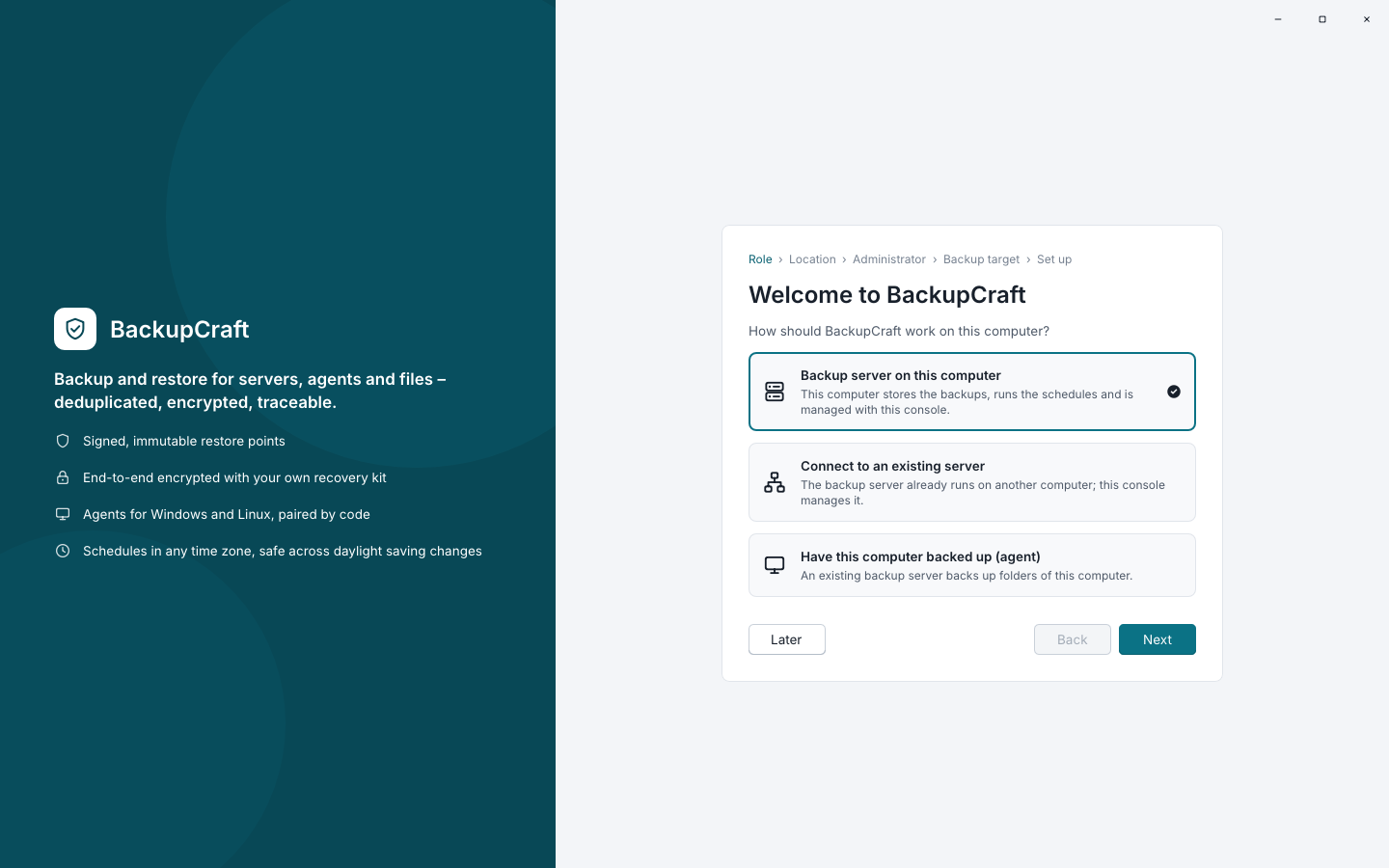
Setup assistant · server, connection or agent
When the console starts for the first time, an assistant asks what this computer should do: be the backup server, connect to a server that already runs elsewhere, or have itself backed up as an agent. For a server it asks for a data folder, whether the server is reachable only on this computer or on the network, the first administrator and a first repository. Then it registers the service, signs you in and opens the job wizard.
Nobody can sign up on their own: the first administrator comes from the server's one-time setup token, every further account is created by an administrator.
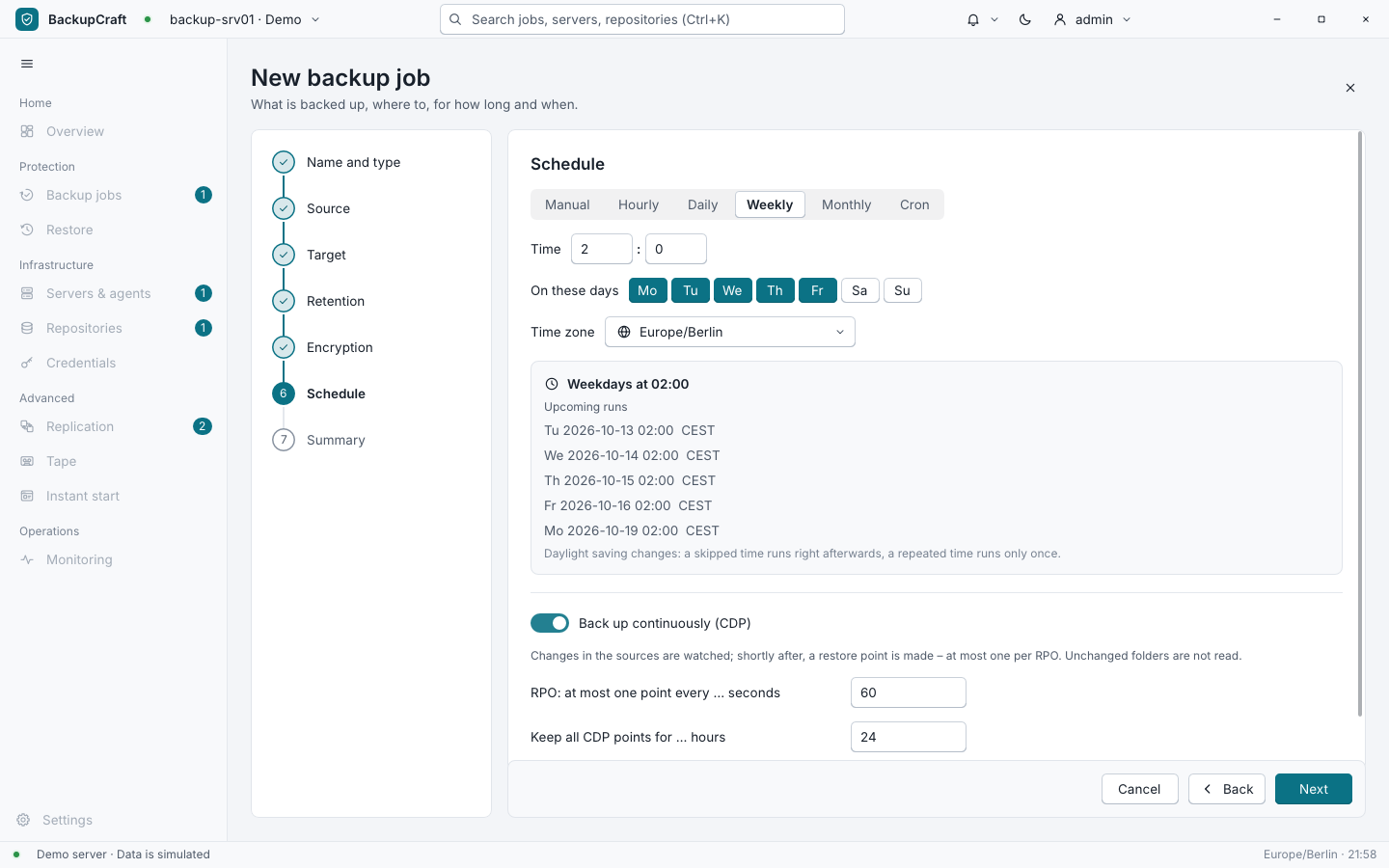
A job in seven steps
Name and type · source · target · retention · encryption · schedule · summary
A wizard walks you through every job. It backs up files and folders on the server or an agent, copies the restore points of another job to a second repository, writes the newest point to tape, saves an entire volume or backs up virtual machines.
Schedules run hourly, daily, weekly, monthly or by a cron expression, in any time zone, and the wizard lists the next runs. When the clocks change, a skipped time runs right afterwards and a repeated time only once. Retention keeps a number of points and daily, weekly and monthly ones; encryption with a passphrase and the compression level are set per job, and a switch turns on continuous protection.
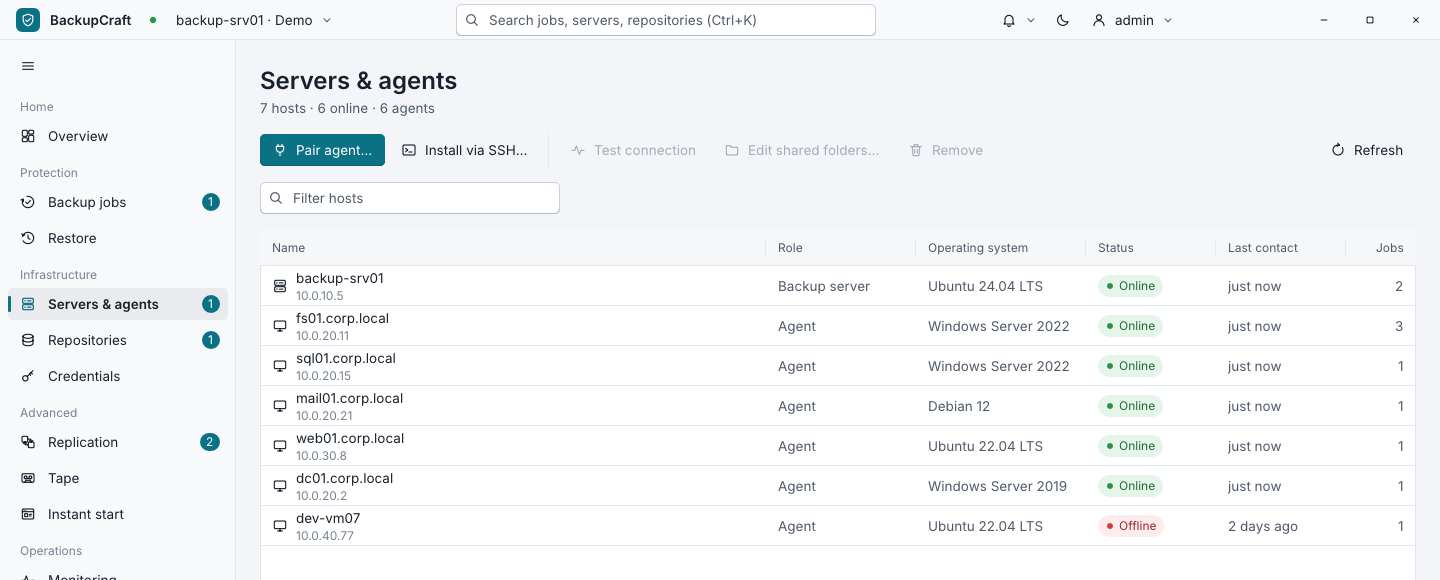
Every machine in one list
Servers and agents · operating system · status · last contact
The backup server and all agents appear in one list with their role, operating system, status, last contact and number of jobs. From here you pair a new agent with a one-time code, install one over SSH on a Linux machine, check a connection, change the folders a machine shares or remove it, which revokes its certificate.
Each agent shares two kinds of folders: the ones it backs up and the ones it may restore into. Nothing outside them is read or written.
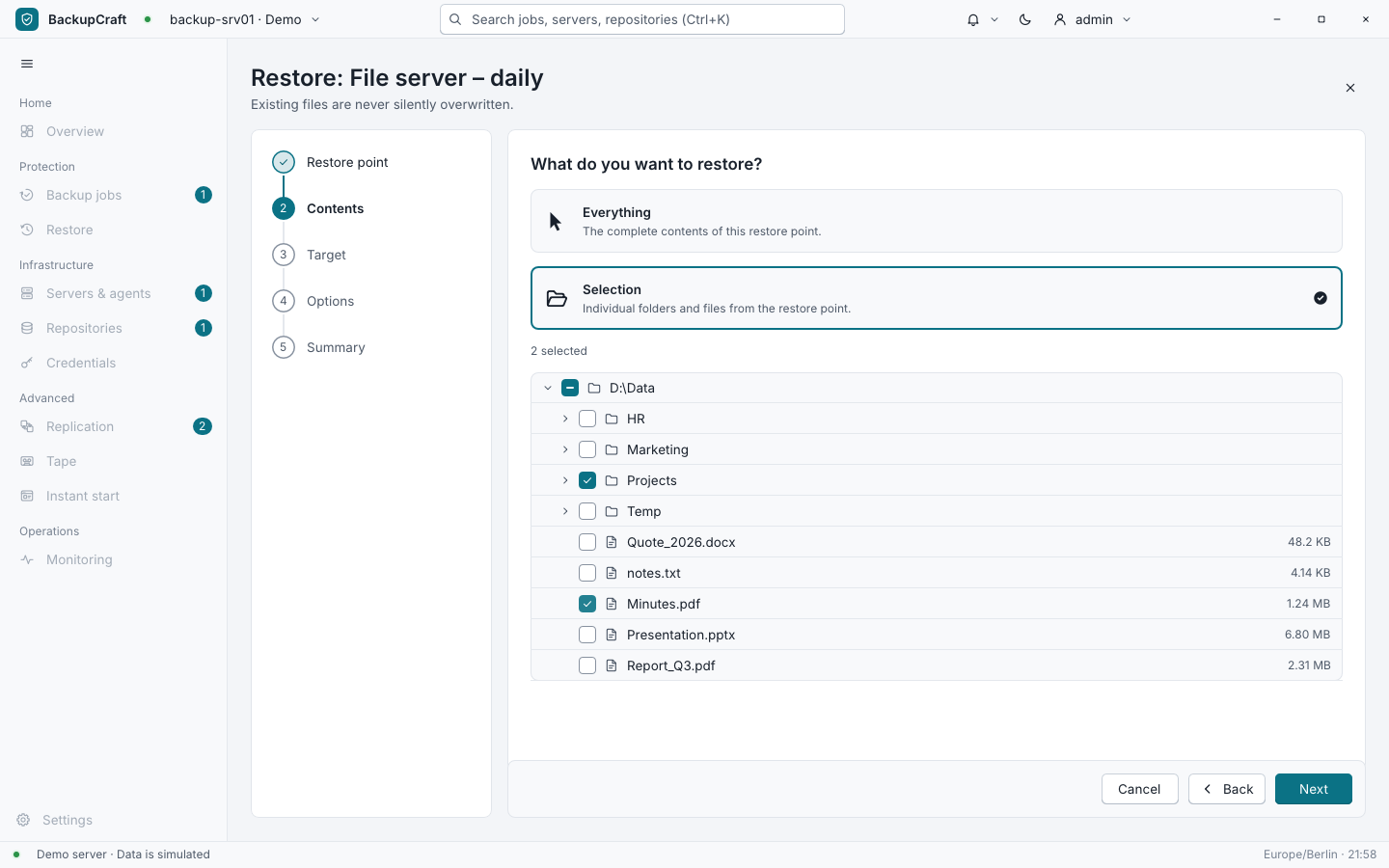
Restore without surprises
Restore point · content · target · options · summary
"Existing files are never silently overwritten" is the first line of the restore wizard, and it means it. You pick a restore point, choose the files and folders in it, then the target: the original place or another folder, on the server or an agent. For files that already exist you decide whether they are skipped, renamed or replaced.
Restored files are written next to their target and renamed only when they are complete, so a broken restore never leaves half a file behind.
Storage you can see into
Repositories · savings · immutability · tape
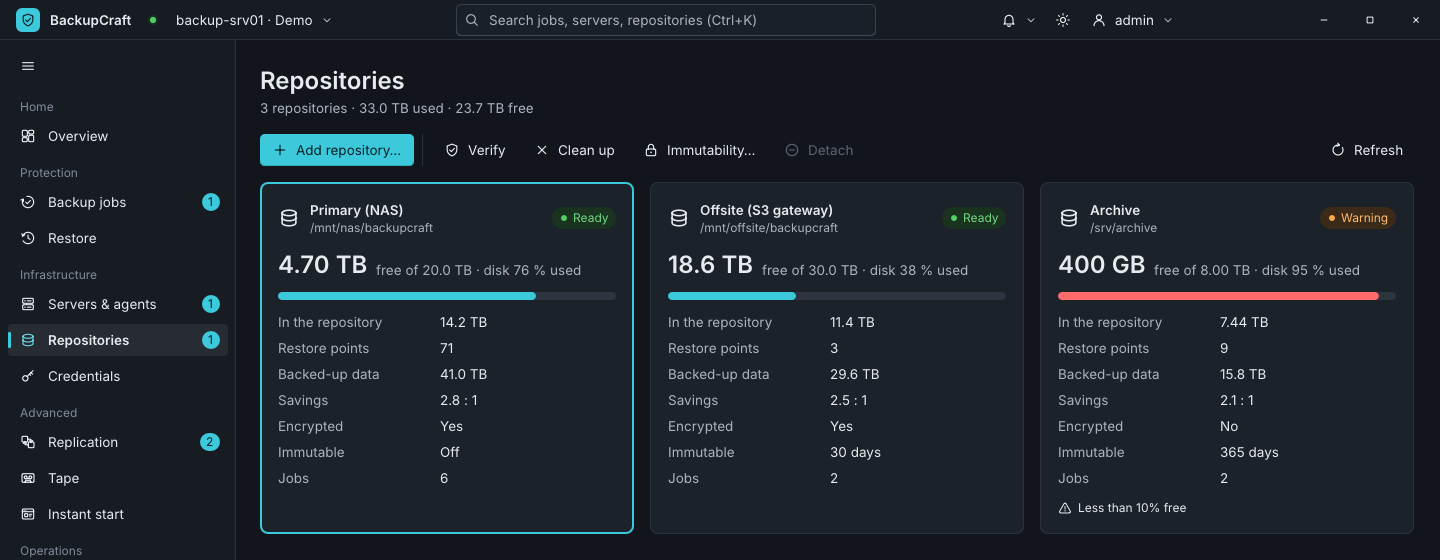
Every repository shows how full it is, how many restore points it holds, how much data they stand for and how much deduplication and compression save. It says whether the data is encrypted and for how many days restore points stay immutable, and it warns when less than a tenth is free. Checking and cleaning up run from the same page.
A virtual tape library writes complete restore points to tapes in files, in media pools with write protection, spanning tapes when one is full. Tapes can be read back without the repository, and even without the server.
Every session on record
Sessions · operations · alerts · audit log · notifications
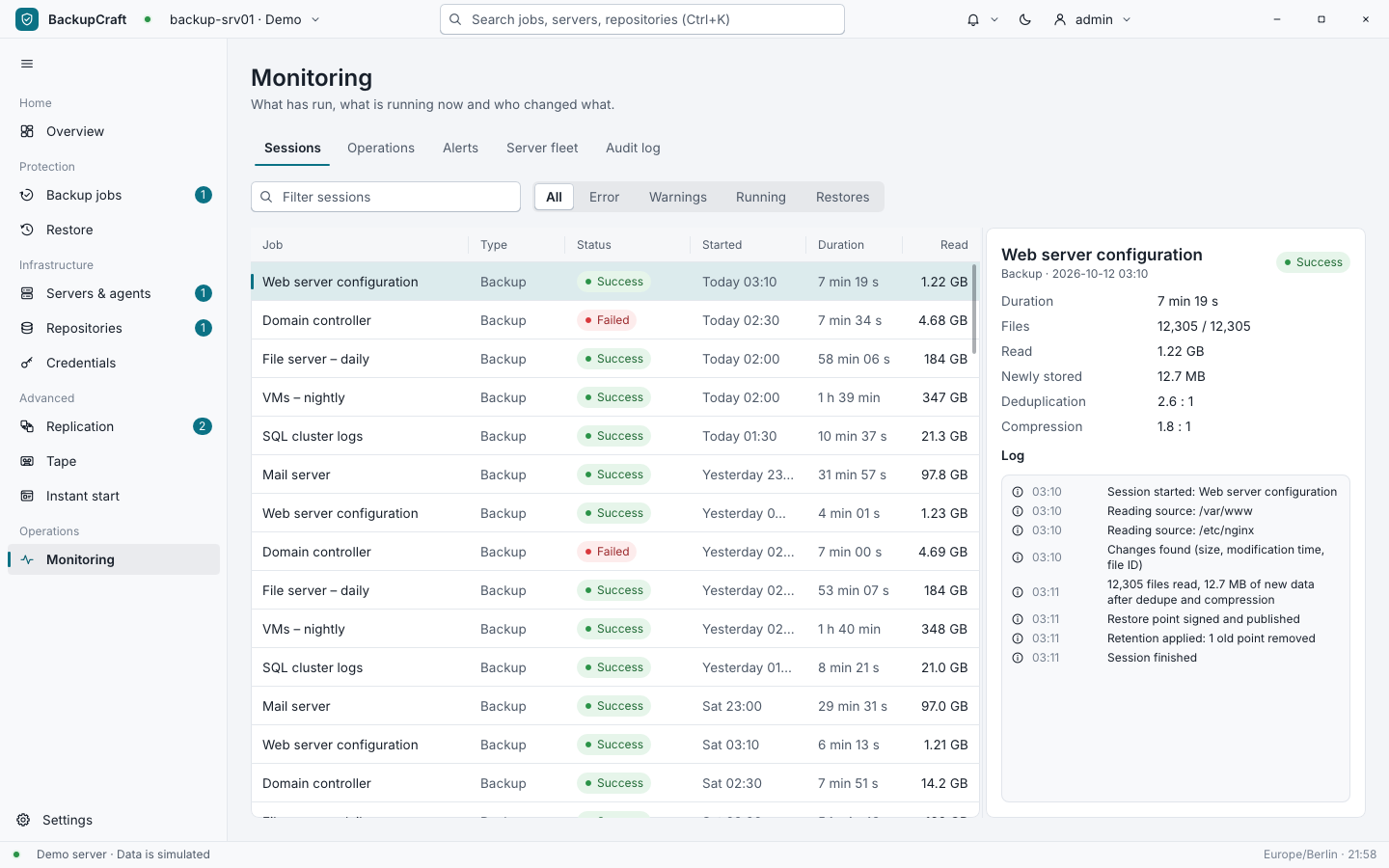
Monitoring lists every session with its result, duration and amount of data. Open one and you see how many files were read, how much was newly stored, how well deduplication and compression worked, and its log line by line. Further tabs show what is running right now, open alerts and the audit log of every change.
Failures, or every session, can be sent by e-mail and web hook, with a daily summary at a time you choose. A central server can also watch the JFBackup servers of other sites and show their jobs, storage and alerts on its own dashboard.
Virtual machines, straight from the backup
QEMU/KVM · instant start · merge · boot checks
On a Linux backup server, JFBackup finds QEMU/KVM machines and backs them up while they run, all disks at the same moment; the next run reads only the blocks that changed. A machine that is switched off is read from its disk files.
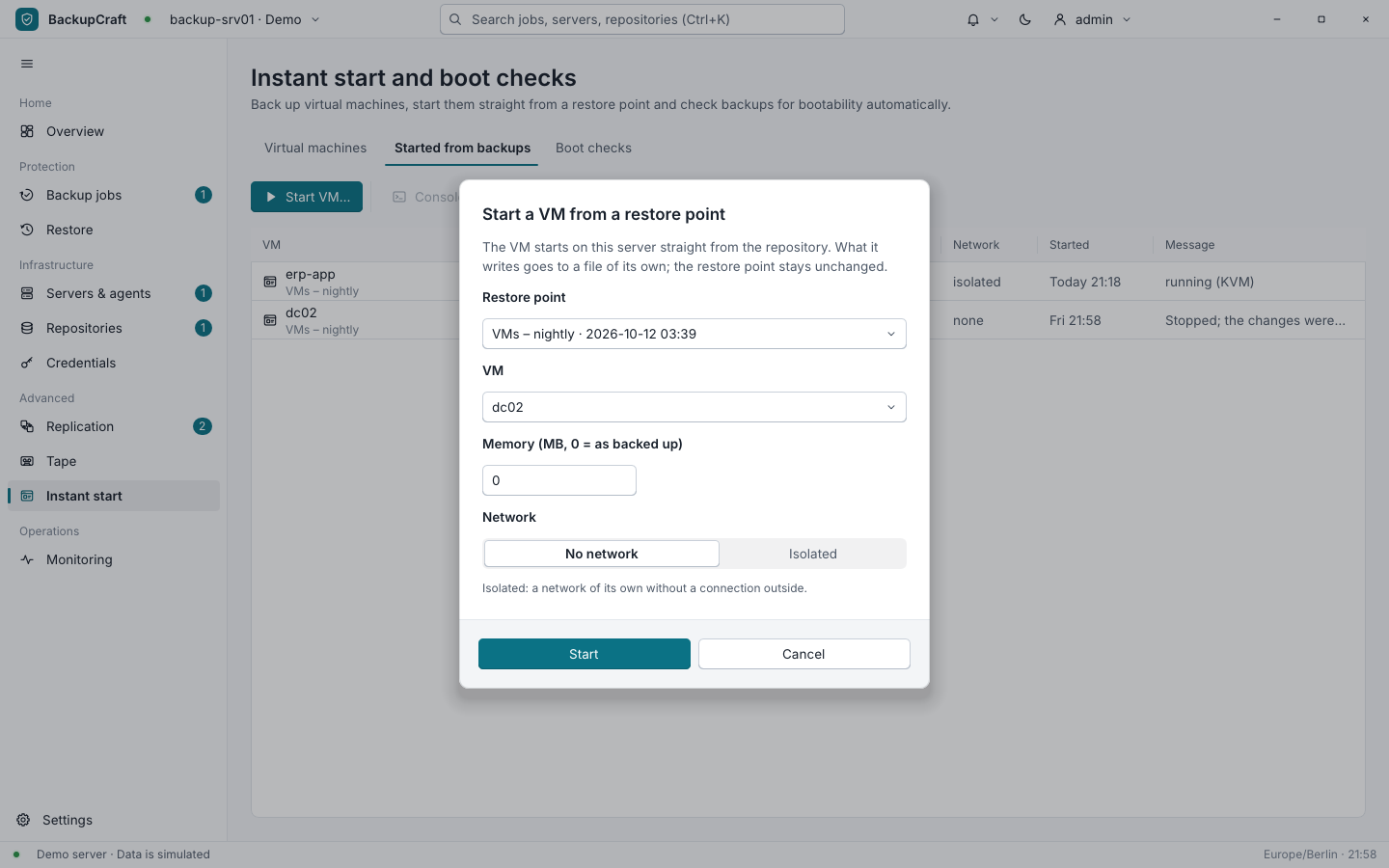
Instant start boots a machine straight from a restore point, without network or in an isolated network. Its writes go to a separate file and the restore point stays untouched. Merge moves the running machine into a folder of its own, stop throws the changes away. Boot checks start a restore point in the same isolated way, check that it keeps running, shows a text on its console or answers on a port, then discard everything and keep the result.
Scripts and automation
bcctl · JSON output · clear exit codes
Everything a script needs is in bcctl, the command-line client: setting up a server, signing in, starting jobs and waiting for them, restoring, verifying, reading logs and the audit log, updates and signing your own releases. With --json it answers in JSON, and its exit codes tell a script what happened: 0 done, 1 refused or failed, 2 wrong usage, 3 no connection or an untrusted server.
# sign in once; an unknown server certificate authority is shown and confirmed
$ bcctl --server https://backup.corp.local:7642 login --user admin
# start a job and wait for the result
$ bcctl run "Mailserver" --wait
# restore a point into a folder, renaming files that exist
$ bcctl restore POINT --target /srv/restore --conflict rename --wait
# read a tape set without any server
$ bcctl tape extract TAPEFILE --to /srv/restore --kit KITFILE